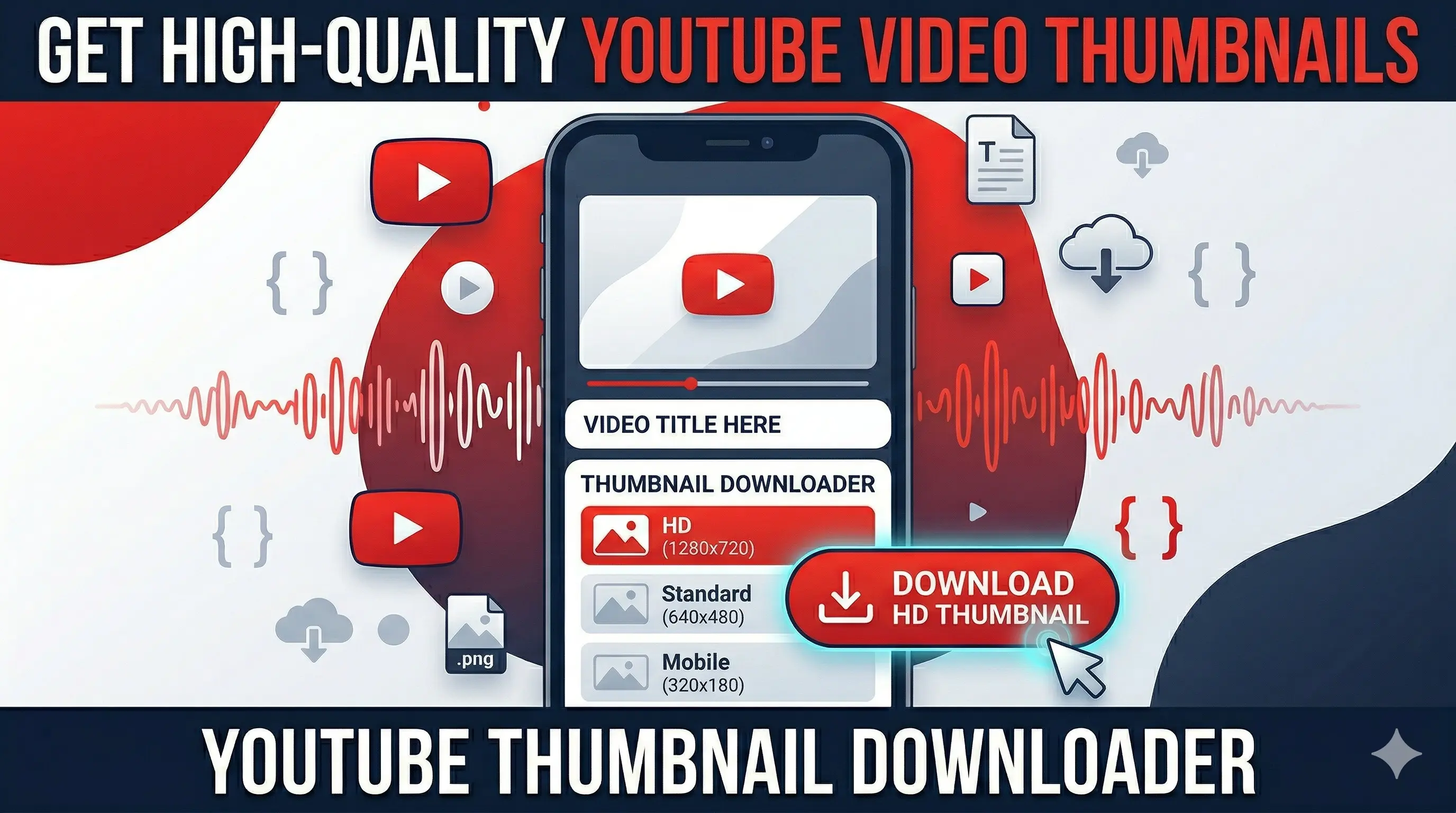
YouTube Thumbnail Downloader: How to Save High-Quality Video Images
Have you ever seen a stunning YouTube thumbnail and wished you could save it for inspiration, a mood board, or a blog post? Whether you are a graphic designer studying composition or a content creator looking for aesthetic ideas, a YouTube Thumbnail Downloader is the tool you need.
In this guide, we’ll explore how to download YouTube thumbnails in HD, why you might need them, and the best practices for using these images legally.
Why Use a YouTube Thumbnail Downloader?
Thumbnails are the "movie posters" of the digital age. There are several professional reasons why you might want to save one:
- Design Inspiration: Analyze the typography, color theory, and layouts used by top-tier YouTubers like MrBeast or MKBHD.
- Blog & Article Assets: If you are reviewing a video or featuring a creator, a high-quality thumbnail makes for a perfect header image.
- Offline Presentations: If you're teaching a class or giving a presentation about digital media, having the physical image file is more reliable than a live link.
- Social Media Sharing: High-res thumbnails look significantly better than blurry screenshots when shared on platforms like X (Twitter) or Pinterest.
How to Download YouTube Thumbnails (Step-by-Step)
Most YouTube thumbnail downloaders are web-based tools that don't require any software installation. Here is the standard process:
1. Copy the Video URL
Go to YouTube and find the video you’re interested in. Click the Share button and select Copy Link.
2. Paste into the Downloader
Visit a trusted YouTube Thumbnail Downloader site. Paste your link into the search bar or input field.
3. Choose Your Resolution
Most tools will offer multiple size options:
- HD (1280x720): The highest quality available.
- SD (640x480): Standard quality.
- Normal (320x180): Smaller file size, good for thumbnails within thumbnails.
4. Save the Image
Right-click on the generated image (or long-press on your phone) and select "Save Image As..." to download it to your device.
Technical Specs: Understanding Thumbnail Sizes
When downloading, you'll see different quality levels. Here is the breakdown of the standard YouTube image hierarchy:
| Quality Label | Resolution | Best Use Case |
| Maximum Resolution | $1280 \times 720$ | Desktop headers, large screens |
| High Quality | $480 \times 360$ | Social media posts |
| Medium Quality | $320 \times 180$ | Website sidebars |
| Default | $120 \times 90$ | Mobile previews |
Is it Legal to Download YouTube Thumbnails?
While it is technically easy to download these images, you must be aware of Copyright Law:
- Fair Use: You can generally use a thumbnail for commentary, criticism, or news reporting.
- Credit the Creator: Always give a shout-out or link back to the original creator if you use their thumbnail in your content.
- Avoid Impersonation: Never download someone else's thumbnail to use as your own for a competing video. This is a violation of YouTube’s terms of service and can lead to a copyright strike.
Summary
A YouTube Thumbnail Downloader is a simple but powerful tool for any digital professional. By grabbing the $1280 \times 720$ version of an image, you ensure you have the best possible asset for your creative projects.
Pro Tip: If you're looking for a specific style, try downloading thumbnails from three different niches (e.g., Gaming, Finance, and Cooking) to see how visual storytelling changes across audiences!
FAQ
Q: Can I download thumbnails from a private video?
A: No. Downloader tools can only access images from public or unlisted videos.
Q: Will the downloader work on my iPhone or Android?
A: Yes! These are web-based tools that work perfectly in any mobile browser like Safari or Chrome.
Q: Does downloading a thumbnail lower its quality?
A: No, as long as you select the "HD" or "Max Resolution" option, you are getting the original file uploaded by the creator.